Alerts
An alert tells you that assets moved in or out of an address you watch — or that something else happened to it: a look-alike address appeared in its history, its EIP-7702 code delegation changed or ran, it approved a spender, or another account moved its tokens out. You set an alert rule on a saved address, and from then on every movement that matches the rule arrives as an alert: in your Favorites, on the Alerts tab, and by email if you want. An alert arrives one block after the movement, and it is updated when the block becomes final or a chain reorganization changes it.
Alerts come with the paid plans — Enriched Data, Intelligence and Investigation. How many rules each plan allows is on Pricing. Signing in is covered in Account & Security.
Add an alert rule
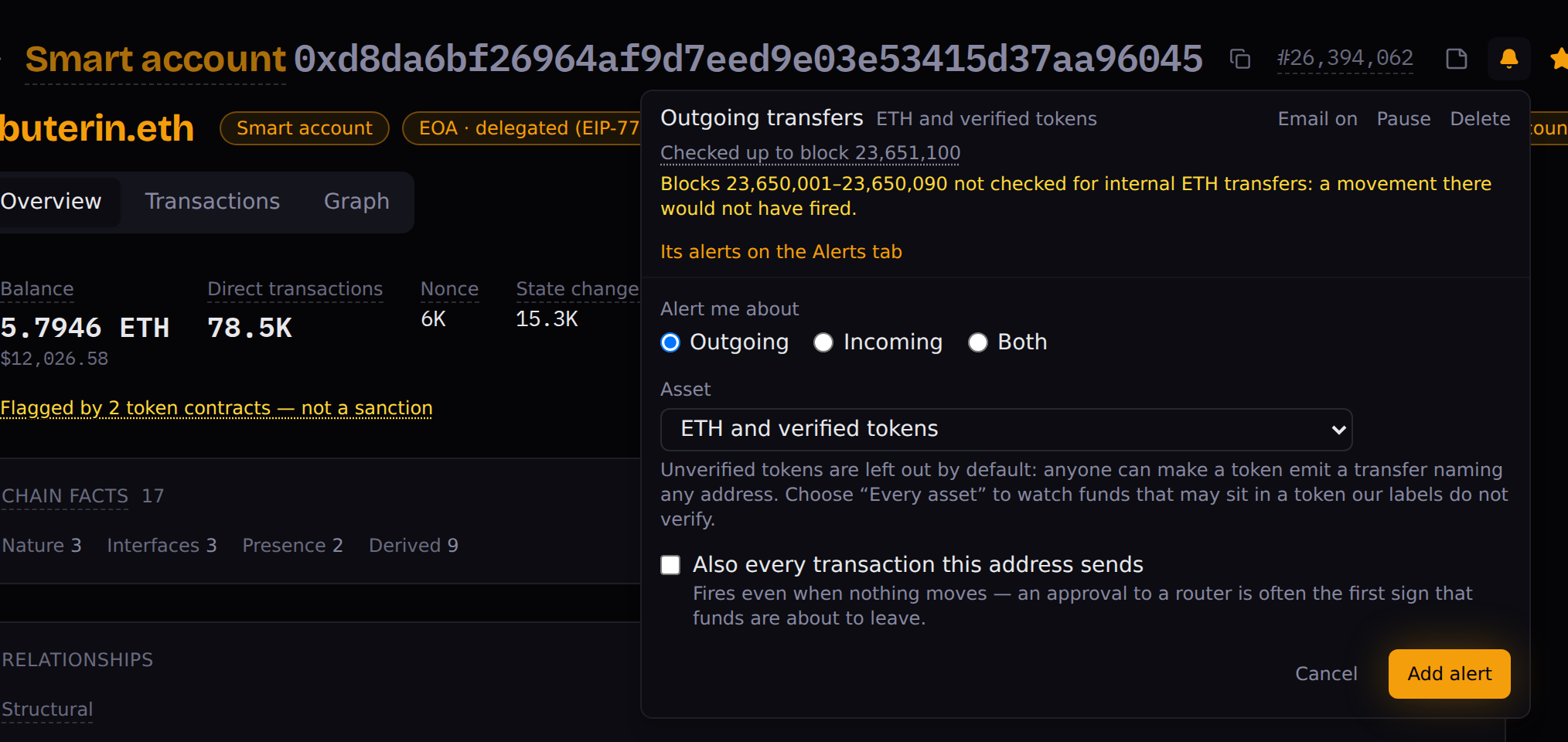
Only a saved address can carry alerts. Its bell sits in two places:
- in your Favorites list, on the address's row;
- in the header of the address's page, beside the star. It appears once you press the star, and goes when you remove the address.
The bell tells you what watches the address:
- Empty — no rules yet. Hover: Add an alert for this address.
- Filled — at least one rule is active: Watched by an alert rule. With more than one rule, their number is beside it. Several rules can watch one address.
- Grey — every rule on the address is paused.
Press the bell. You see the address's first three rules, a link to the rest on the Alerts tab, and below them the form for a new rule. It starts with Watch for:
- Transfers — the default: assets moving in or out. Its fields are below.
- Look-alike addresses — addresses that share their first and last four characters with an address this one paid, the setup of address poisoning. Alert me about:
- Look-alike transfers it did not send — a transfer naming this address as its sender appeared in its history, though the address did not send it. There can be 5–10 for every payment the address makes;
- Payments to look-alikes — the address paid a look-alike of an address it paid before.
- Code delegation (EIP-7702) — Alert me about one or more of Delegation set, Delegation removed, Delegated code run by another account and Value moved out by delegated code.
- Approvals — the address allowed a spender to move its tokens. Asset: Any token or One token; tick Unlimited approvals only to skip the bounded ones.
- Tokens moved out by others — another account moved tokens out of the address with an allowance or a signature it had given. Asset: Any token, One token or One NFT collection; with one token, a Minimum amount (optional).
Choose at least one event where the form asks for it. The fields of Transfers:
-
Alert me about — Outgoing (the default), Incoming or Both.
-
Asset:
- ETH and verified tokens — the default;
- Every asset, verified or not;
- ETH only;
- One token;
- One NFT collection.
The last two ask for the Token or collection: type a name, a symbol or a
0x…address. Two letters or more of a name or symbol list the tokens it may mean — ERC-20 tokens for One token, ERC-721 and ERC-1155 collections for One NFT collection. Each row is drawn like the site's search: one warning mark before the name — a look-alike warning, or else the risk of its label — a name only where its label allows one (a name withheld for risk shows as the address), and a verified tick or an unverified mark. Picking a row fills in the address and writes it under the field in full — Chosen: USDT · Tether USD · 0x… — so a clone with the same name can be told apart. A pasted address works as well.Unverified tokens are left out by default: anyone can make a token emit a transfer naming any address. Choose Every asset to watch funds that may sit in a token TraceFast labels do not verify.
-
Minimum amount (optional) — in the asset's own units, for ETH or one token. Amounts of different assets do not compare, so a minimum needs one asset. If the token states no scale, enter raw units. A movement of zero never fires.
-
Also every transaction this address sends — with outgoing movement only. It fires even when nothing moves: an approval to a router is often the first sign that funds are about to leave. A transaction that failed fires too, marked as failed.
Press Add alert. A rule is named by what it watches — Outgoing transfers, Incoming transfers or Transfers in or out, plus and transactions sent — followed by its conditions, such as ETH and verified tokens or at least 1,000 USDT. The other kinds are named the same way: Look-alike transfers and payments to look-alikes, Code delegation set or removed (EIP-7702), Unlimited approvals granted, Tokens moved out by another account — with Any token or Only USDT.
If your plan has no alerts, you see Your plan does not include alerts, with a link to the plans that have them. When every rule your plan allows is in use, the bell says Your plan has no room for another alert rule.
The Alerts tab
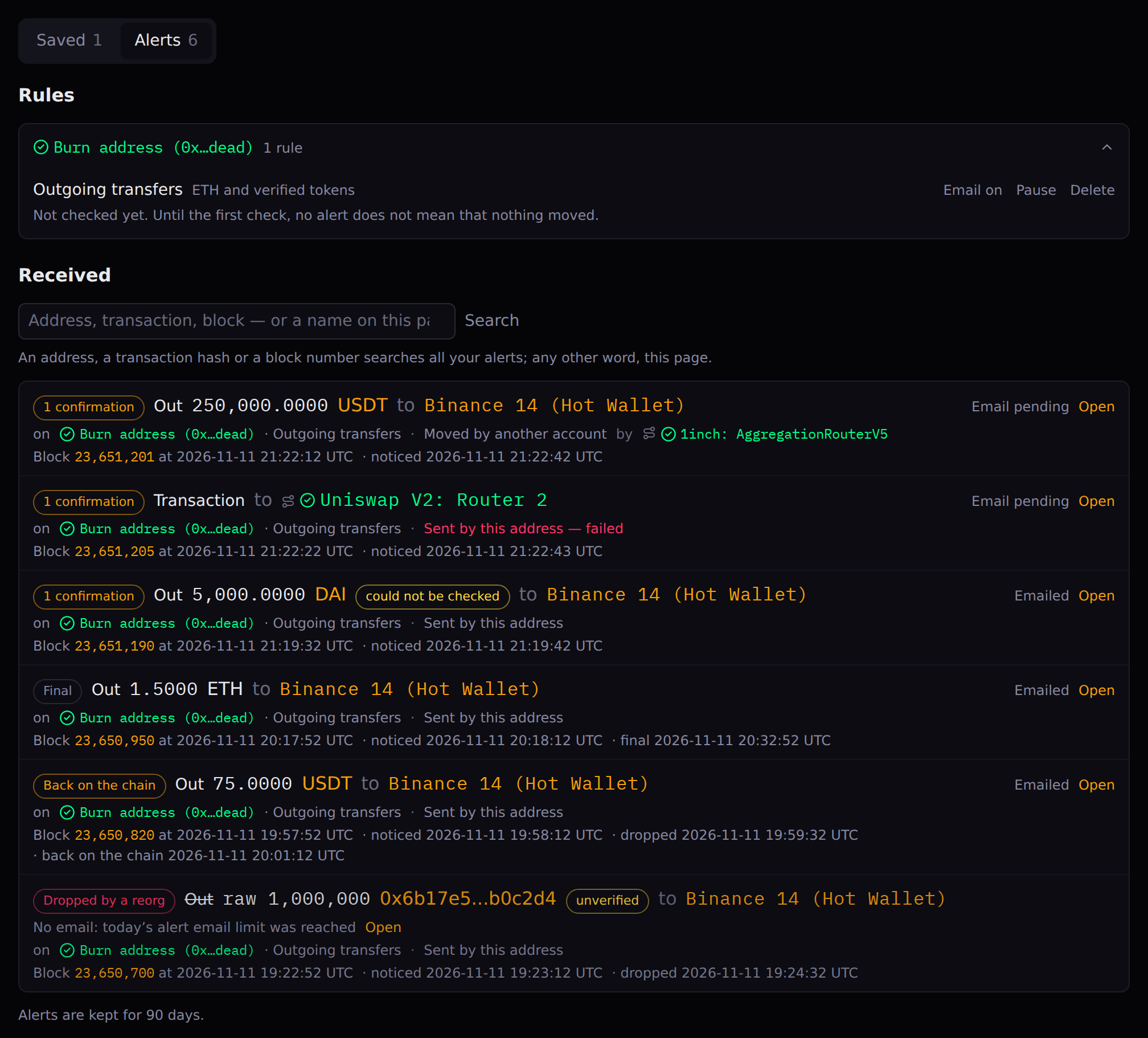
The Favorites page has two tabs at the top: Saved, your list, and Alerts, with the number of alerts on its first page.
Rules
- Rules are grouped by address. An address with more than three rules is folded; Collapse all and Expand all work on every group.
- Each rule has three switches:
- Email on / Email off — whether this rule emails you; its alerts arrive here either way;
- Pause / Resume — nothing fires while a rule is paused, and nothing is sent later for that time;
- Delete.
- Checked up to block N says how far the rule has been checked. Hover it for each kind of movement — ETH transfers, internal ETH transfers, token transfers, NFT transfers, multi-token transfers, transactions sent, and for the other kinds look-alike transfers, payments to look-alikes, delegations set and removed, delegated code runs, outflows by delegated code, approvals, tokens moved out by others — and for the block the check started from, when the rule took effect.
- A gap is named, for example Blocks 23,650,001–23,650,090 not checked for internal ETH transfers: a movement there would not have fired.
- Not checked yet means the rule has had no check so far. Until the first check, no alert does not mean that nothing moved.
If your plan changes:
- When you have more rules than your new plan allows, every rule stays, and the newest are paused. To resume one, delete or pause another.
- On a plan without alerts, your rules are kept, paused: nothing fires, and nothing is sent later for that time.
Received
Each alert takes three lines:
- What moved — its phase, then the movement: Out or In, the amount and the asset, and the counterparty. A transaction the address sent reads Transaction to address, or creating a contract. On the right are the state of its email and Open, the page of that one alert — the page an alert email links to.
- Where and who — the watched address, the rule, and who moved the asset:
- Sent by this address — the address signed the transaction itself;
- Moved by another account — the address did not sign. Another account moved the asset, for example a spender using an allowance or a permit, and it is named;
- Sent by this address — failed — the transaction was included in a block but failed: everything it tried to change was undone, and only its fee was paid.
- When — the block and its time, when TraceFast noticed the movement, and when the block became final, was dropped or came back.
An alert of the other kinds says what happened in one sentence, with every address named — a look-alike and the address it copies in full, since they differ only in the middle. For example: This address sent 2,000 USDT to 0x…, which shares its first and last four characters with 0x…, an address it paid before. … This can look like address poisoning — check that 0x… is the address you meant to pay. An unlimited approval reads an unlimited amount of, and a delegation set in a transaction that reverted says the delegation still took effect.
Marks on the asset:
- unverified — TraceFast labels do not verify this token. Its name and symbol are what the contract says about itself.
- could not be checked — when the alert fired, whether the token is verified could not be checked. The alert was sent without waiting for the check, so you hear about the movement at once.
- raw N — the token states no scale for this amount, so it is shown in raw units.
Finding an alert:
-
Pages hold 50 alerts each: ← Newer, Newest, Older →.
-
One chip per saved address appears when rules watch more than one address: All addresses, then each address. An address chip shows every alert of every rule on it, over the whole history. Under it, All its rules and one chip per rule of that address narrow it further. With a single address, the chips are per rule: All rules, then each rule.
-
The search box reads what you type:
- An address, a transaction hash or a block number searches all your kept alerts, not just the page — press Enter or Search. An address finds the alerts where it is the counterparty, the account that moved the asset, the address a transaction was sent to, or the token's contract. A block number works with or without commas. The answer says Every kept alert with this address, newest first. (or this transaction, this block); More results pages on, and Clear search goes back to the list. No kept alert is about … covers the whole kept history.
- Any other word, such as a token symbol or a name, filters only the alerts on the open page as you type.
The hint under the box says the same: An address, a transaction hash or a block number searches all your alerts; any other word, this page. The search respects the address and rule you chose, and what you searched never goes into the page's address.
Alerts are kept for 90 days.
Phases
| Phase | What it means |
|---|---|
| 1 confirmation | Sent as soon as one block was built on top of the movement's block. A deeper reorg could still remove it; if one does, you get a correction. |
| Final | The block is final, about 13 minutes later: this movement can no longer be removed by a reorg. |
| Dropped by a reorg | A chain reorganization removed the block this movement was in. It never happened on the chain that stands. |
| Back on the chain | A second chain reorganization restored the block with this movement. It happened after all, and the earlier correction no longer applies. |
Alert emails
Every alert arrives on the Alerts tab. Email is on top of that, and you control it in two places:
- For one rule — its Email on / Email off switch on the Alerts tab.
- For your whole account — on the Settings → Alerts page, below.
Settings → Alerts
Open Settings from your account menu and choose the Alerts tab, or go to tracefast.xyz/settings/alerts. The footer of an alert email links here too.
Alert emails are on / off. Turn emails off and Turn emails on switch email for all your alerts at once. This switch outranks each rule's own: with it off, no rule emails you, whatever its own switch says, and the Alerts tab says so with a link back here. Alerts still arrive in Favorites either way.
A daily cap. The page states how many alert emails you can get in a day. Past that, alerts still arrive in Favorites, marked No email: today's alert email limit was reached.
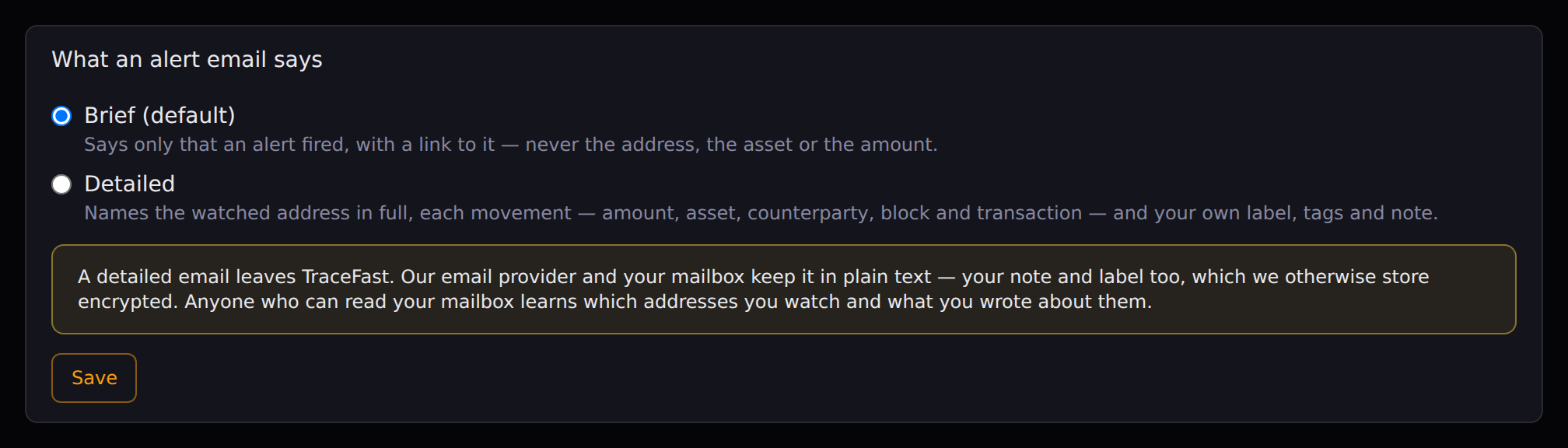
What an alert email says — choose one and press Save:
- Brief (the default) — says only that an alert fired, with a link to it. It never names the address, the asset or the amount.
- Detailed — names the watched address in full and each movement — amount, asset, counterparty, block and transaction — with your own label, tags and note. Amounts are in the token's own units, for example Sent 250,000 USDT to 0x… (Binance 14). When the token does not state its decimals, the email gives the raw amount and says so: Sent USDT — raw amount N (its decimals are not known) — to …
The choice does not touch the on / off switch: it only changes what an email carries.
Read the warning beside it before you choose Detailed: A detailed email leaves TraceFast. Our email provider and your mailbox keep it in plain text — your note and label too, which we otherwise store encrypted. Anyone who can read your mailbox learns which addresses you watch and what you wrote about them.
Email states
The state of each alert's email shows on its row:
| State | What it means |
|---|---|
| Email pending | The email has not gone yet. |
| Emailed | It was sent. |
| Emailed in a digest | It went together with other alerts, in one email. |
| Email not delivered | Sending failed. |
| No email for this alert | No email will go for it — for example, emails are off, or the rule was paused. |
| No email: today's alert email limit was reached | Your daily number of alert emails was used up. The alert is here all the same. |
Unsubscribe in one click. The link at the foot of an alert email, or your mail client's own unsubscribe button, opens Stop emails for this alert?. Turn off emails for this alert turns email off for the one rule that the email came from. No more emails and no corrections are sent for it, and pressing the link again changes nothing. The rule keeps watching, and its alerts still arrive in Favorites.
Removing a watched address
Rules belong to a saved address, so removing the address from Favorites deletes its rules too. TraceFast asks first: Removing this from Favorites also deletes its alert rule. Undo brings it back. — from the list and from the star in the address's header alike.
Related pages
- Favorites — saving addresses, and your labels, notes and tags
- Entity Page — the address page with the star and the bell
- Account & Security — signing in and protecting your account
Last updated 19 Nov 2026, 11:46 UTC · verified against TraceFast v1.0.332 · Markdown