Cases
A case is one investigation written down as a graph. Its nodes are on-chain objects — addresses, transactions, blocks, events — and off-chain ones, such as an organization or a website. Its links are your claims about how they connect. Each claim carries the evidence behind it. You can build a case on the canvas, or have an AI agent build it for you over the API or MCP. It stays your private draft for as long as you like. When it is ready, you can publish a read-only copy that anyone with the link can open.
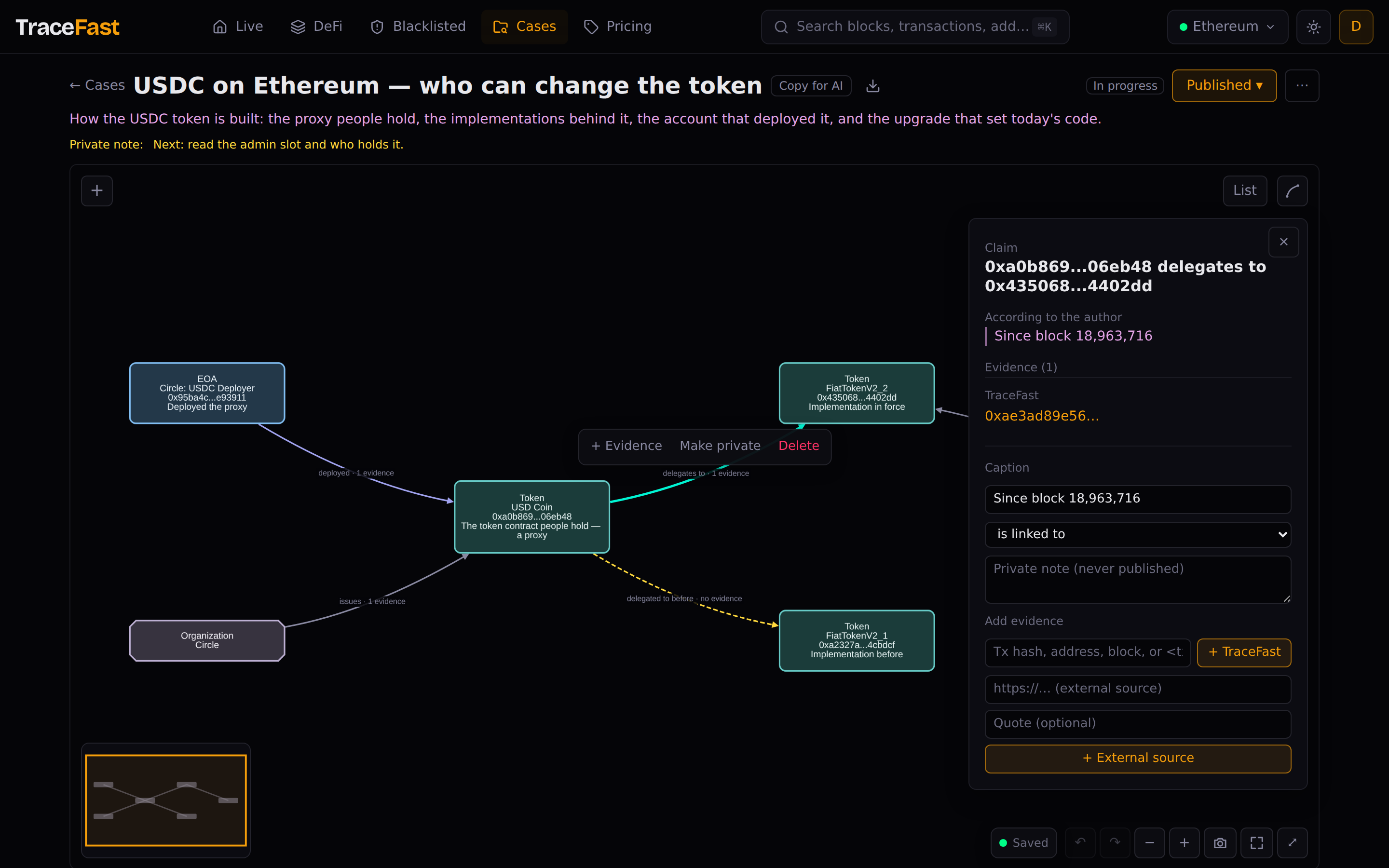
A case copies nothing from TraceFast. An on-chain node stores the reference alone, such as the address or the transaction hash. Its name, kind, risk and balances are read live each time the case is shown. So a case never goes stale, and it never makes a name public that the reader is not allowed to see.
Your cases and published cases
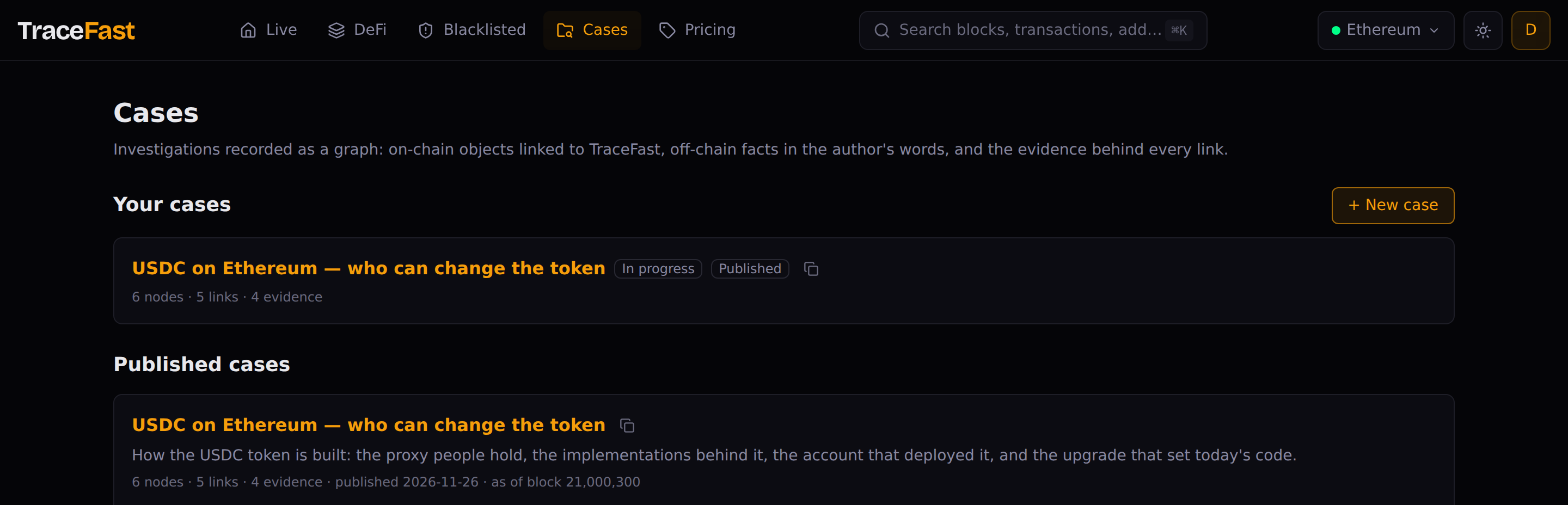
Cases in the top bar opens the dashboard:
- Your cases — every case of yours, the most recently changed first, with its status (In progress or Closed), whether it is Published, and how many nodes, links and evidence it holds. + New case starts an empty case titled Untitled case. Give it a title on the canvas.
- Published cases — the cases their authors published, newest first, each with its summary, the day it was published and the block it was published at. Older published cases → pages back.
Anyone can read the published cases, signed in or not. Creating and editing cases needs the Investigation plan (Pricing). If your account leaves that plan, you can still read, unpublish and delete your cases, but you cannot edit or publish them. The copies you already published stay up.
The canvas
The canvas fills the window below the case's header. Everything you change is saved by itself — there is no Save button. The status in the corner reads Saving…, then Saved; if the connection fails it reads Not saved — retrying, keeps your changes and sends them again. The browser warns you before you close a tab with unsent changes.
The header holds the title and, under it, the summary and a private note for the whole case. You edit all three in place. Beside the title:
- Copy for AI — copies the whole case as Markdown, with its ids, version and private parts, to paste into an AI assistant;
- ⤓ — downloads the same text as a
.mdfile, with the version, the export time and the case's history; - the status — click In progress or Closed to switch it;
- Preview and publish (or Published ▾ once it is published — the link, a new version, Unpublish);
- ⋯ — Delete this case. It asks you to type the case's title, then deletes the case, its history and its published copy for good.
Adding. + adds a node:
- Paste an address, a transaction hash, a block number, or a log written as
<tx hash>#<log index>to get an on-chain node. - Type a name and choose its kind to get an off-chain node. The kinds are Organization, Service, Online account, Domain, Payment account, Document and Other. There is no node for a person.
A reference is checked before it is saved, so a hash that TraceFast does not know never becomes part of a case.
Linking. Select a node, then press Link or drag from its handle to another node, and choose what the link says:
- sent funds to, received funds from, was funded by;
- controls, owns, deployed;
- interacted with, is the same actor as, is related to;
- a relation in your own words.
Each link can carry a caption. A link written by an agent can also say what moved — an amount, the token, the block and the transaction. The canvas shows these marked (by the author): TraceFast does not check them. The arrow beside List switches how links are drawn: curved, straight or elbow. That choice is kept in your browser, not in the case.
Colours are TraceFast's, not the author's. A node is coloured by what it is:
- a wallet, a contract or a token;
- a transaction, an event or a block;
- an organization or a service;
- an account, or a document.
A link is coloured by the family of its relation: money, control, the same actor, or an interaction. Yellow, red, green and amber are kept for risk, verification and selection.
Evidence. The panel of a selected node or link lists its evidence and adds more:
- + TraceFast — a transaction, an address, a block or a log, which opens in TraceFast to show the same thing again;
- + External source — a URL with an optional quote, kept as text with the time it was captured. No files are uploaded.
A comment the author added to a TraceFast item reads The author's comment. Evidence the author read from the chain through their own node is marked Author's read via RPC · not verified by TraceFast, with no link. A link with no evidence is drawn as a yellow dashed line and says no evidence. The panel can also mark the object Make private, or Delete it — deleting a node deletes its links and their evidence.
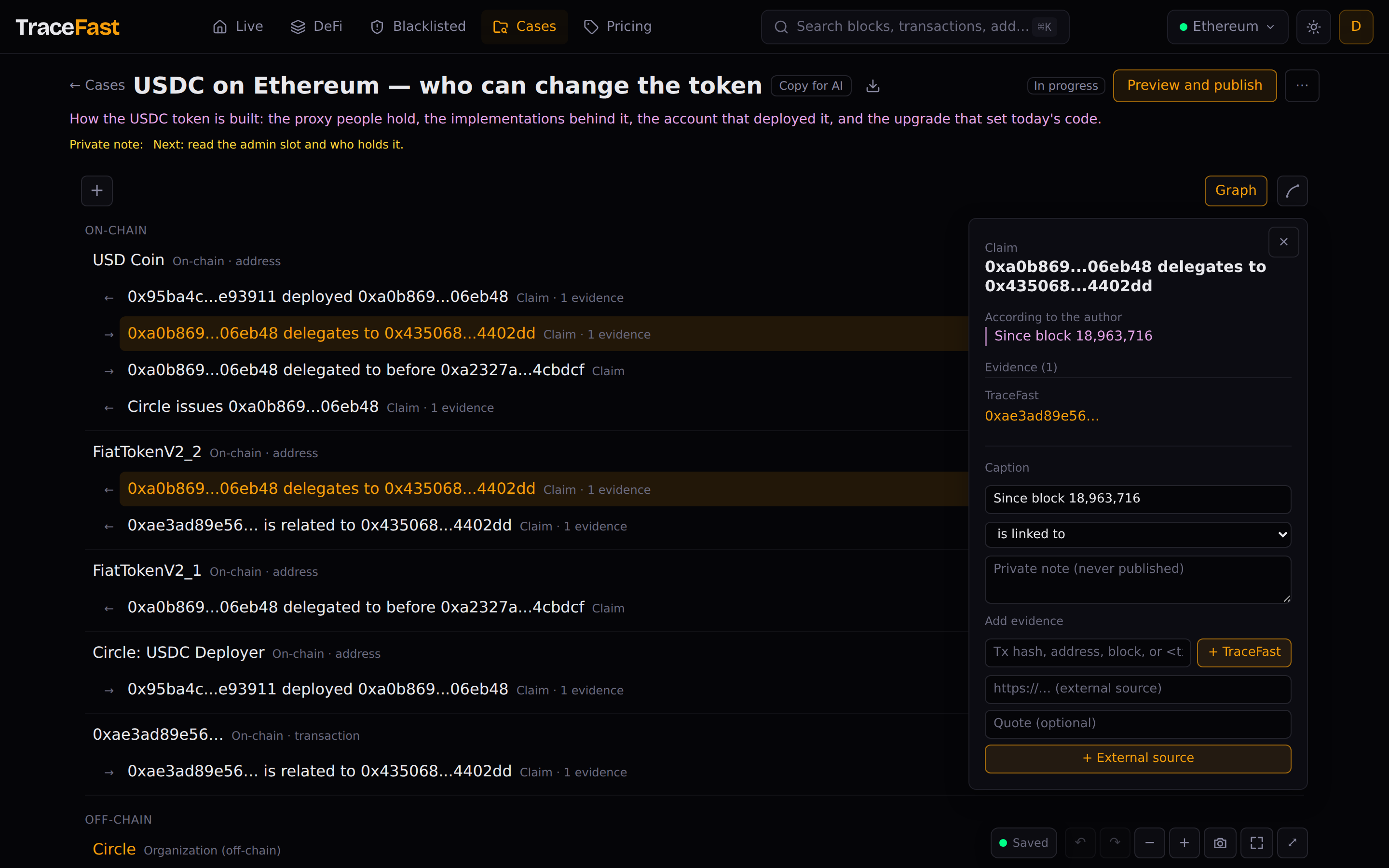
List. List shows the same case as rows instead of a graph — easier to
read on a long case, from the keyboard or on a phone. On-chain nodes come
first, then off-chain ones. Under each node are its links, each with an arrow
for its direction and the number of its evidence. Click a row — or move to it
with ↑ ↓ and press Enter — and the panel beside the list opens on it, as on the graph: the
claim, the author's words, its evidence, the fields to edit and Add
evidence. A link is selected in both places it appears, under each of its
ends. Graph goes back.
Reading. The tab Claims and evidence, under the canvas, lists every
claim with its evidence. History
shows who changed the case and when: you, an API key, or a signed-in agent.
Moving nodes is saved as one change, a few seconds after the last move. The
bottom corner holds undo and redo, zoom, a picture of the canvas (PNG,
with the title, version and time) and full screen. Keyboard: / or A add,
L link, F fit, Del delete, Esc close; Ctrl+Z and Ctrl+Shift+Z undo
and redo. A deletion cannot be undone.
Changes from elsewhere. An agent can edit the case while it is open. The canvas checks for a new version, highlights what changed, and stays Live for a few minutes after a change. If you and someone else changed the same field, your edit is not sent over theirs. The canvas says Changed elsewhere while you edited — nothing was overwritten. Edit again to keep yours.
Private parts
Every part of a case — the case itself, a node, a link, a piece of evidence — can carry a private note, and can be marked private. Neither is ever published. Off-chain nodes of kind Online account and Payment account are never published either, whatever their mark, because they can point at a person. A link loses its place in the published copy when one of its ends is left out. The evidence on anything left out goes with it.
Publishing
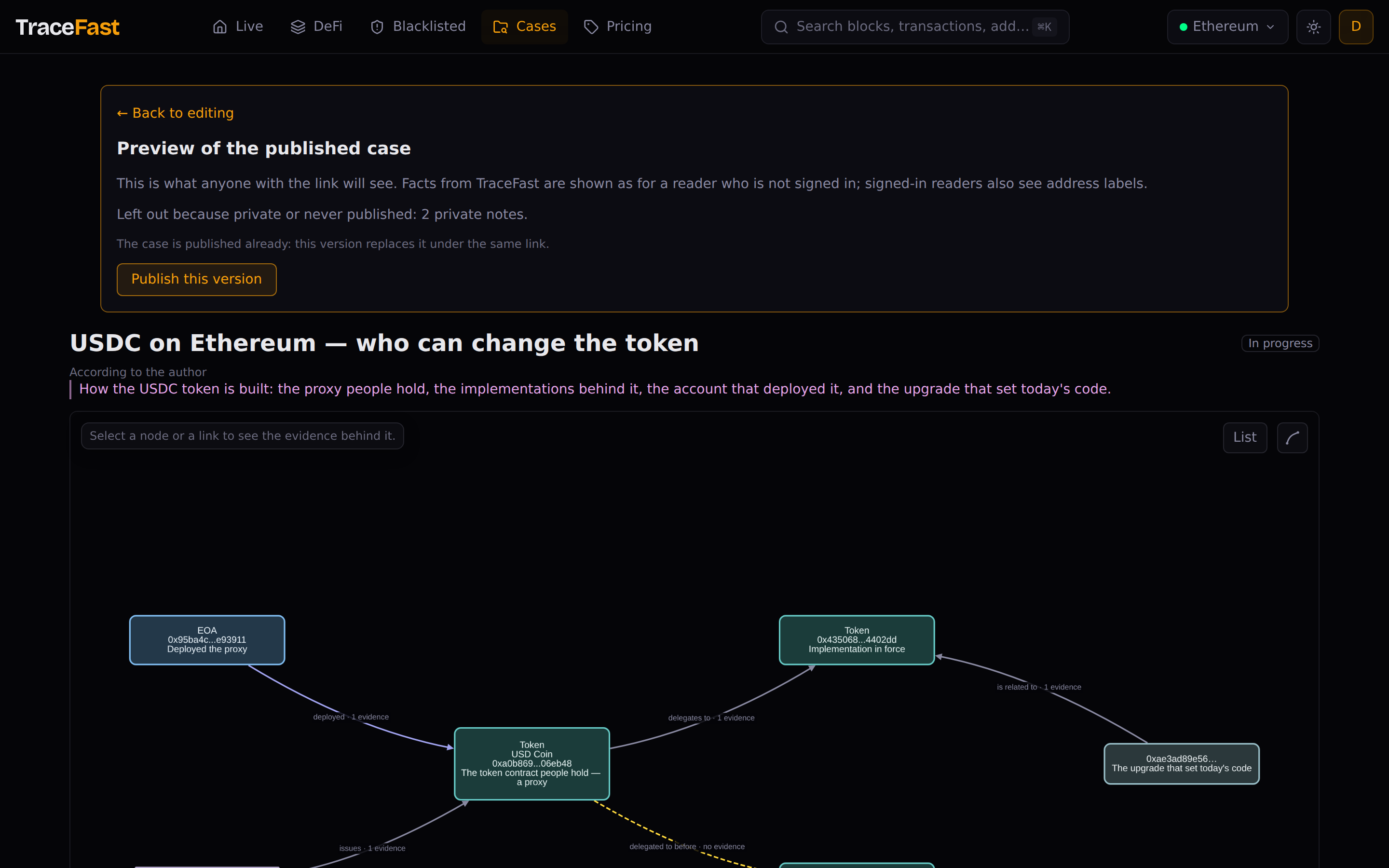
Only you publish a case, and only after you have seen the result. Preview and publish shows the copy exactly as an anonymous reader will see it, and names what it leaves out — Left out because private or never published: 2 private notes. Publish publishes that version. If the case changes after the preview, the publish is refused and you return to the preview. Publishing again replaces the copy under the same link. Unpublish takes the copy down: its link stops answering within a minute.
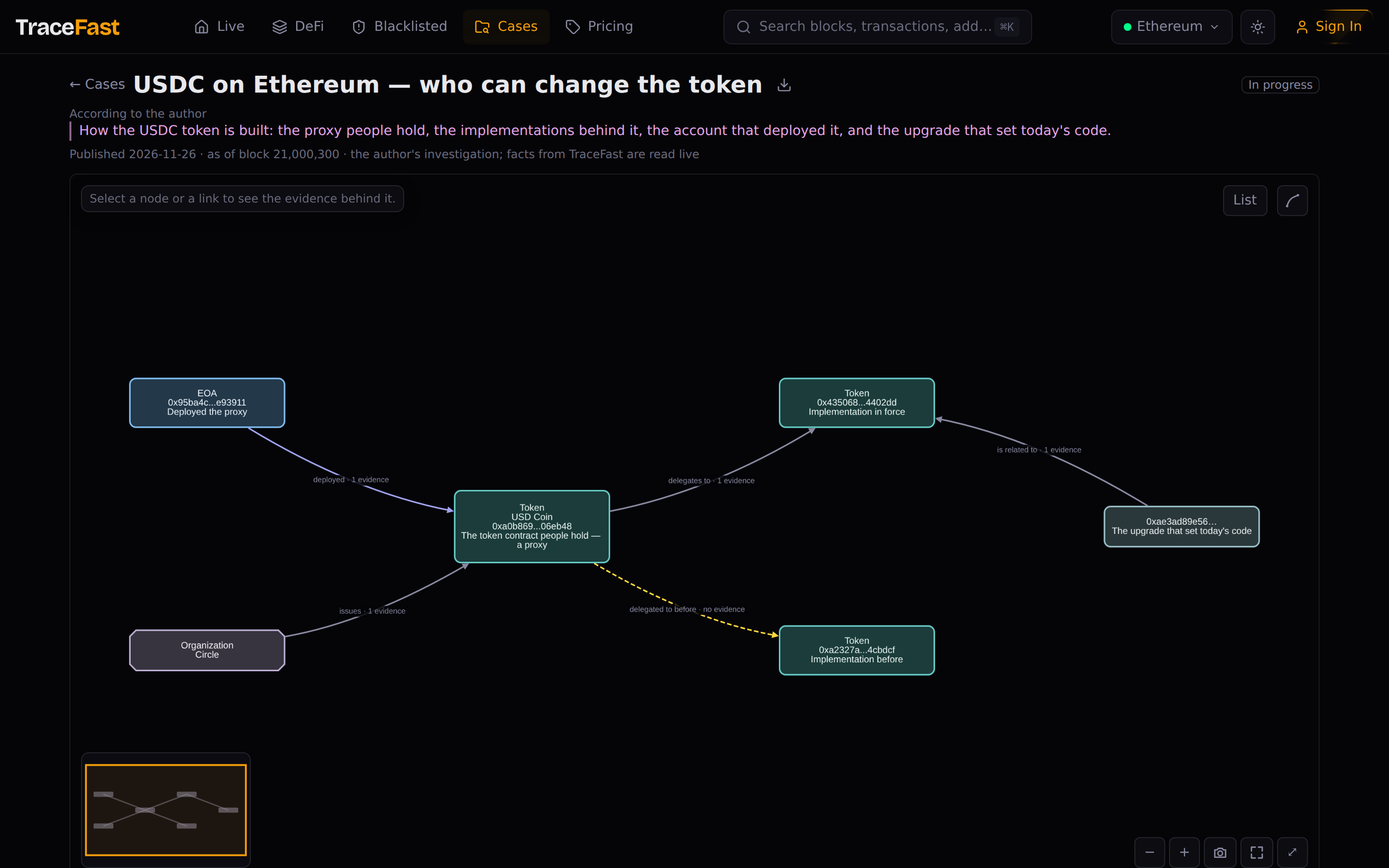
A published case opens at https://tracefast.xyz/cases/p/<slug>:
- The author's words are marked according to the author. The page says when the case was published and at which block, and that facts from TraceFast are read live.
- Facts from TraceFast are shown under each reader's own rights. An anonymous reader sees the addresses without their labels — a token still shows its own name. A signed-in reader sees labels as on any other page.
- The download icon beside the title gives the same copy as a Markdown file, with nothing the page does not show.
Published cases are kept out of search engines. A case need not be published at all.
Cases for AI agents
An agent works on your cases with the same operations as the canvas. It can list them, create one, read one, edit it in batches, read its history, preview a publication, unpublish and delete. It acts as your account, and the History names it. A case an agent creates starts private: nothing of it can be published until it is made public. An agent cannot publish: publishing stays with you, after the preview.
- Over MCP, the agent signs in with your TraceFast account. On the consent screen, the line Read and edit your investigation cases (it cannot publish them) is a checkbox — checked by default for Claude, unchecked for other apps. Check it to let the app work on your cases; leave it unchecked to connect without them. See Connect an AI agent.
- Over REST, a server agent uses an API key on the Investigation plan, issued with the Cases API permission.
Every method is described on Cases in the API.
Settings → Connected apps says for each app whether it has access to your cases.
Related pages
- Cases in the API — the eight methods and tools
- Connect an AI agent over MCP — sign-in, consent and tools
- Favorites — keep single items with your notes
- Graph & projections — the platform's own graph of an address
- Account & Security — sign-in and connected apps
Last updated 26 Nov 2026, 13:29 UTC · verified against TraceFast v1.0.367 · Markdown